
Deal Manager To Go Online Support
Reporting
Deal summary



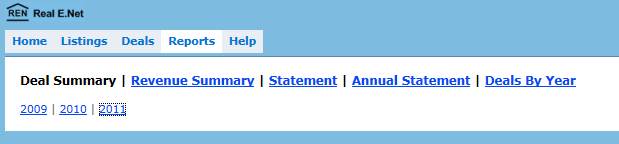
This Report will return your activity for the year and month selected. This is not a
Revenue report and is not to be used for Income Tax purposes.
To view your Deal Summary for a particular year; click on Reports, then
choose Deal Summary and then choose the year then month in question as shown
above.
It will show you the amount of
·
Firm Deals in the month and year selected and the Ends, Sale Prices and
Commission amounts associated with each Firm deal
·
Your outstanding conditional deals and the
Ends, Sale Prices and Commissions amount associated with each Conditional deal
·
Any deals that have not paid in to you or
the brokerage from prior years
Revenue Summary



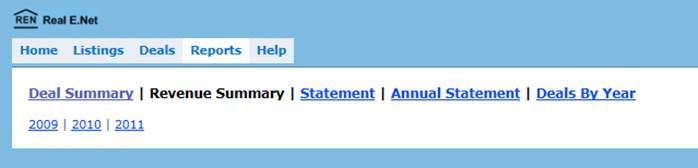
This report returns all deals paid to you for the year selected. This can be used for Income Tax purposes.
To view your revenue summary for a particular year; click on Reports,
then choose Revenue Summary and then choose the year in question as shown
above.
It will show you your
·
T4A Income Year to Date
·
GST/HST collected Year to Date
·
Your deduction amounts per cheque such as
o Charity/Donation
o Service Fees
o AR
o Staff Funds etc
·
A Deduction summary of all your deduction
accounts and the total amount collected and paid out from each account
Statements


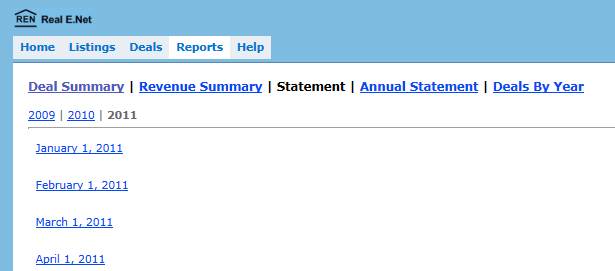
These are your monthly expenses from the brokerage.
To view any statement that the brokerage has processed in Real E.Net;
Click on Reports, then Statements, and then the year and statement period you
would like to see as show above.
Annual Statements



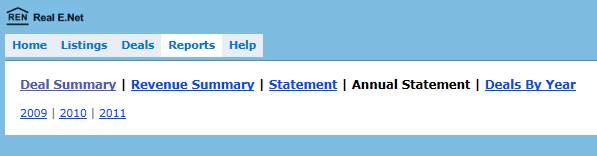
These are your monthly expenses from the brokerage summarized in to one
annual report. It will give you a month by month breakdown of all brokerage
expenses incurred throughout the year.
To view your annual statement; Click on Reports, then Annual Statement,
and then the year you would like to see as show above.
Deals By Year


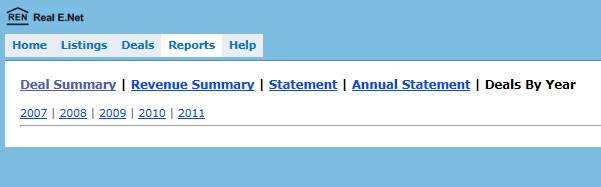
This report will give you deals Written in a year. So deals that have a
sale date in the year selected.
To run the Deals by Year report; Click on Reports, then Deals by Year,
and then the year you would like to see as show above.